 TechTried-and-true tip
Copy text from a photo or directly with the camera (Google Lens on Android)
Copy text from a photo or straight from the camera with Google Lens on Android instead of typing it out by hand.
- Time
- ⏱ 1 min
- Difficulty
- ◆ easy
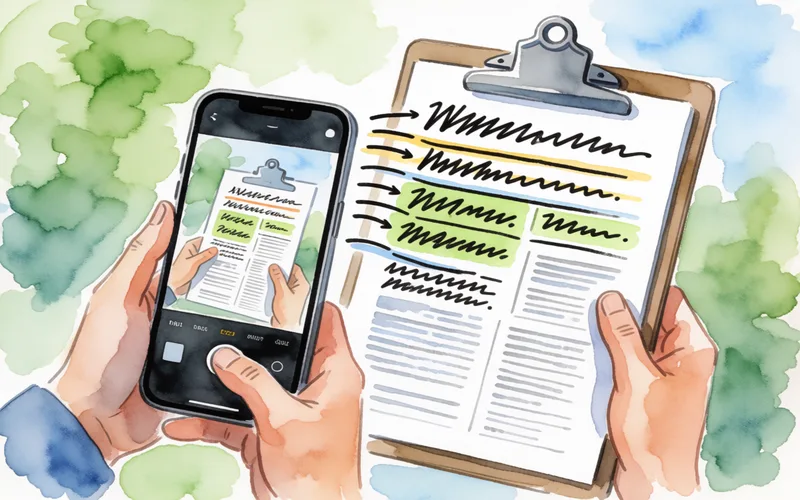
How to do it
- Open the picture in Google Photos.
- Tap the Lens button at the bottom.
- Tap “Select text”. Lens highlights the text areas.
- Adjust the selection with the cursor handles if needed.
- Choose “Copy text” at the bottom.
Variations
- The recognised text can also be translated or searched; on some devices a “Listen” option appears too.
- Directly in the camera app: open the camera, swipe right until “Modes” appears and choose “Google Lens”. Pick “Text” at the bottom left, select the area you want, copy it and paste it into the phone app, a browser or a note.
- Handwritten text is recognised as well, as long as it is legible.
- The feature needs an internet connection.
Sources
This is where we found the tip. The badge above shows how well it is backed up.
- pctipp.ch (opens in a new tab)
Anschliessend erscheinen im unteren Bereich des Handy-Displays zwei oder drei Optionen: Text kopieren und Auf Computer kopieren.
- futurezone.at (opens in a new tab)
Hat man die Kamera-App geöffnet, wischt man unten nach rechts, bis die Option „Modi“ auftaucht.